Congrats on being referred to CourseCareers! Find your next career path now with no upfront cost.

100% Scholarships Available. Open to Everyone.
Learn More
Updated October 25, 2026
Mac users can follow these instructions if they are stuck on screen sharing page and the green arrow is not working.
You can verify your browser is setup correctly here: https://www.integrityadvocate.com/support/getting-started.
We have had some students, when using Safari, have the exam page display a blank white page. Their problem was resolved by switching to the Google Chrome browser.
If your browser is verified and the issue persists, please contact our proctoring partner, Integrity Advocate, through its support center.
Mac
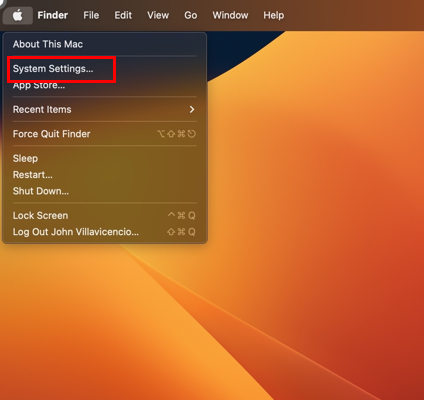
1. Click on the Apple icon and select System Settings
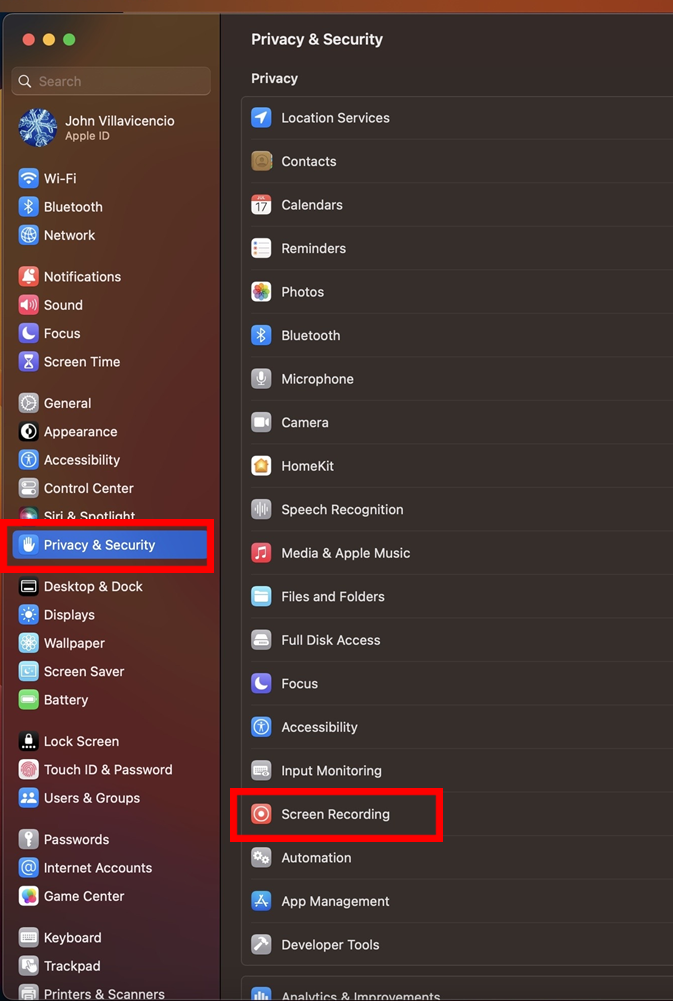
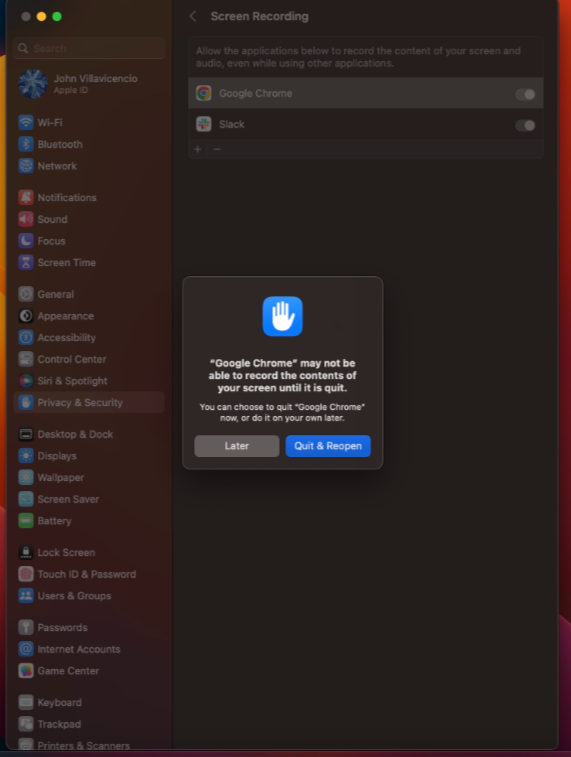
2. Go to Privacy & Security from the left bar list, and then go to Screen Recording
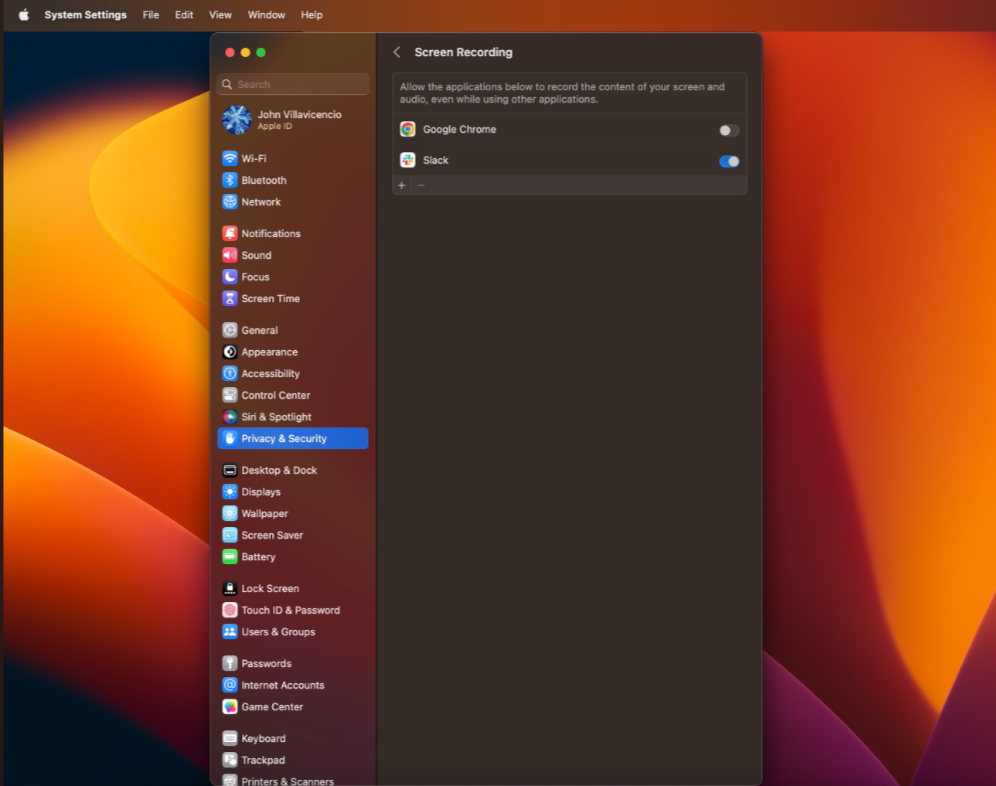
3. Under Screen Recording, enable the button for the browser you are using (Google Chrome, Edge, Safari)
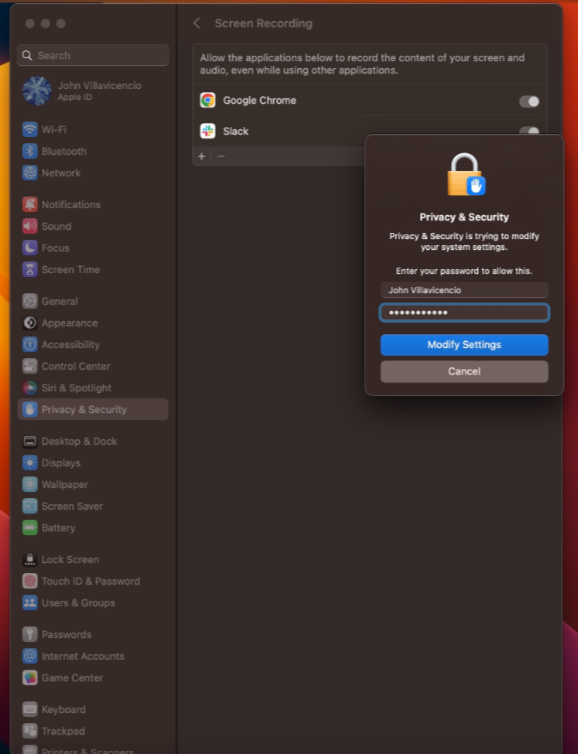
4. If the button for the browser is turned off, you will need to unlock it by entering the correct username and password
5. When prompted, click Quit & Reopen. The change will not take effect and you will not be able to share your screen until you quit and restart your browser
Ask our support assistant. It can answer most questions right away, and it hands you to our team when it cannot.
Or email support@coursecareers.com (Mon-Fri, 8 am – 5 pm EST).