Congrats on being referred to CourseCareers! Find your next career path now with no upfront cost.

100% Scholarships Available. Open to Everyone.
Learn More
Updated October 25, 2026
Some students have reported problems with audio error messages and not being able to submit the exam when using a Mac and Safari. Switching to the Google Chrome browser fixed their problem.
Make sure your browser meets these minimum requirements.
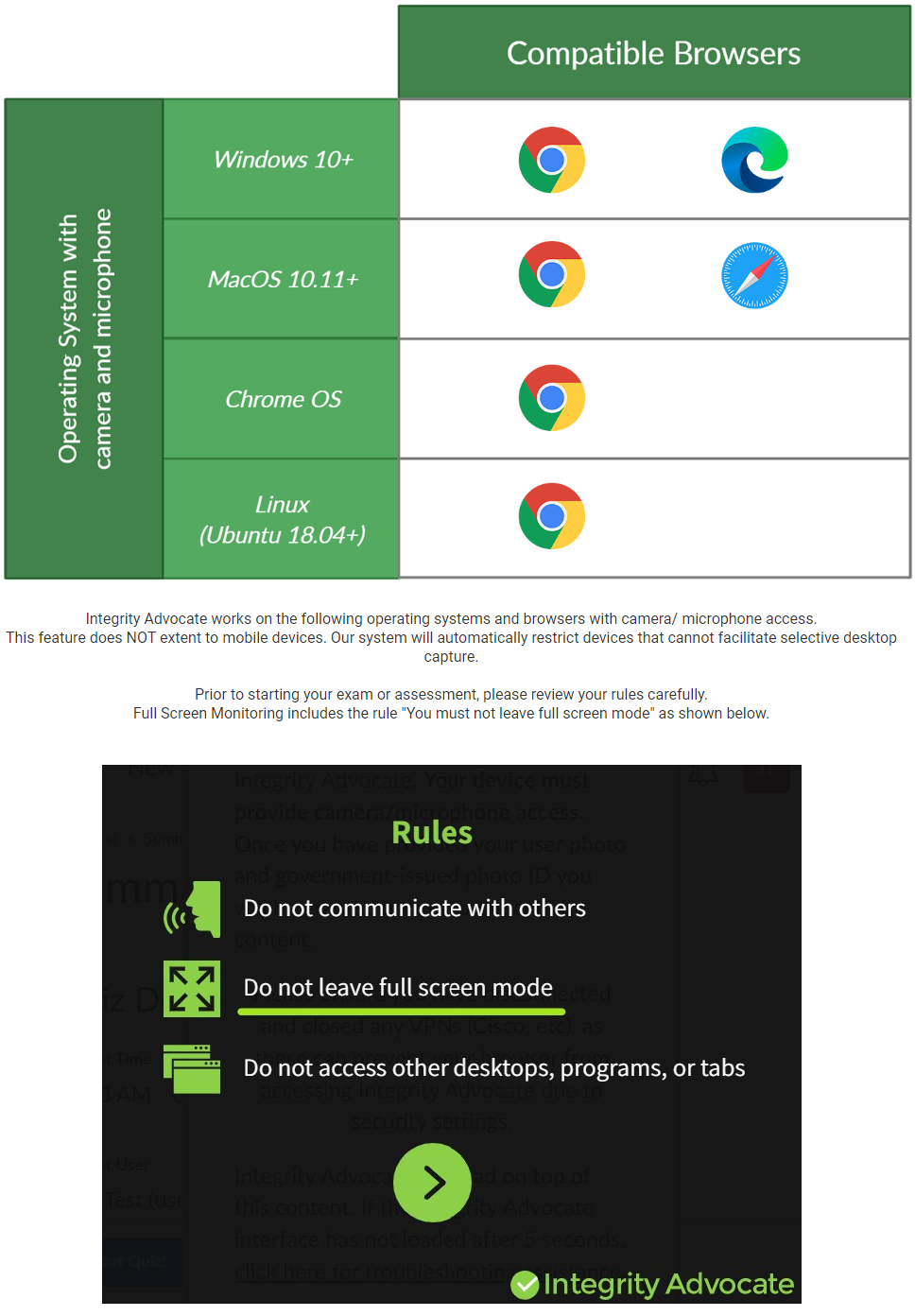
Next, you can verify your browser is set up correctly for full screen monitoring by going to https://www.integrityadvocate.com/support/getting-started.
If you have checked all the above and the issue still persists, if you are using Chrome, before closing or shutting anything down, please take a screenshot of your Javscript console following the directions below and ask our support assistant or email support@coursecareers.com with your issue and include the image of the javascript console. If you are not using Chrome, just ask our support assistant or email support@coursecareers.com with your issue.
Open the JS console in Chrome:
Windows/Linux: Press Control + Shift + J.
Mac: Press Command + Option + J
This will open the browser console that is used by developers to diagnose issues. There might be important information there that can help the dev team diagnose what's wrong.
Take a screenshot of the errors shown in the JS console:
Windows: Press Windows + Shift+ S at the same time. Your screen will dim and you can select the JS console to take a picture of any errors that are showing up.
Mac: Cmd + Shift + 4 at the same time. It'll bring up a little target icon and you can select what you would like to screenshot.
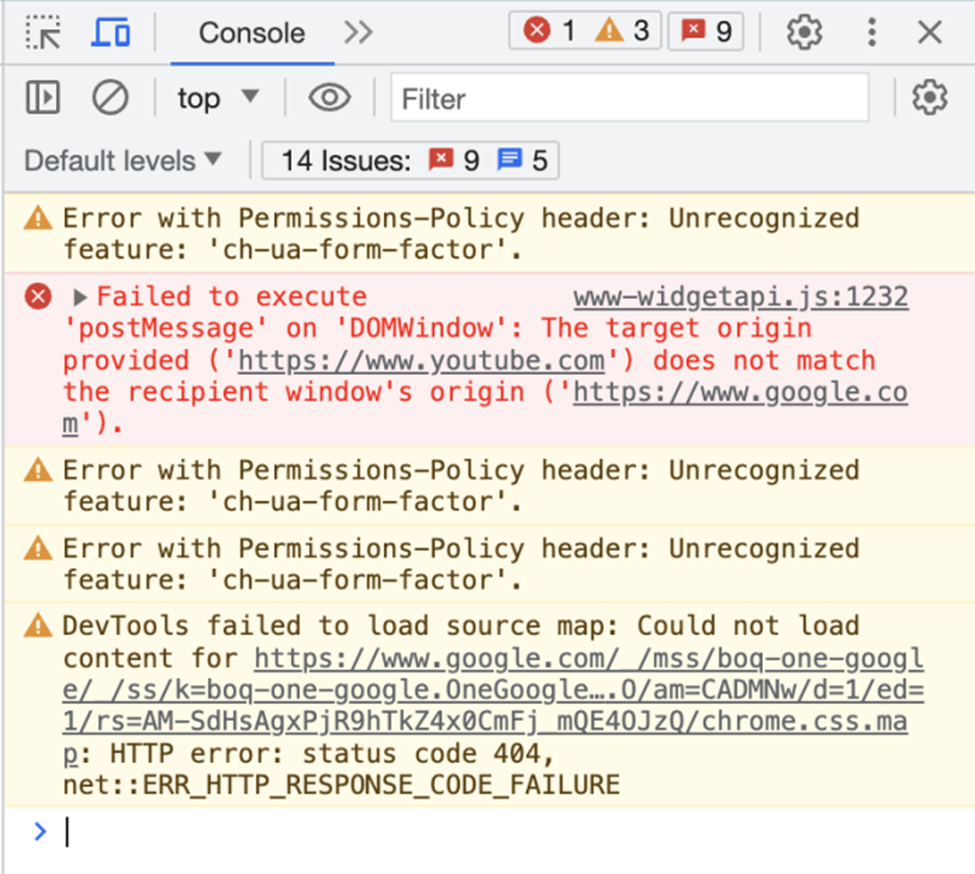
Here's what the JS console might look like in Chrome.
Ask our support assistant. It can answer most questions right away, and it hands you to our team when it cannot.
Or email support@coursecareers.com (Mon-Fri, 8 am – 5 pm EST).